Introduction: Why Selenium with Python Dominates Web Automation
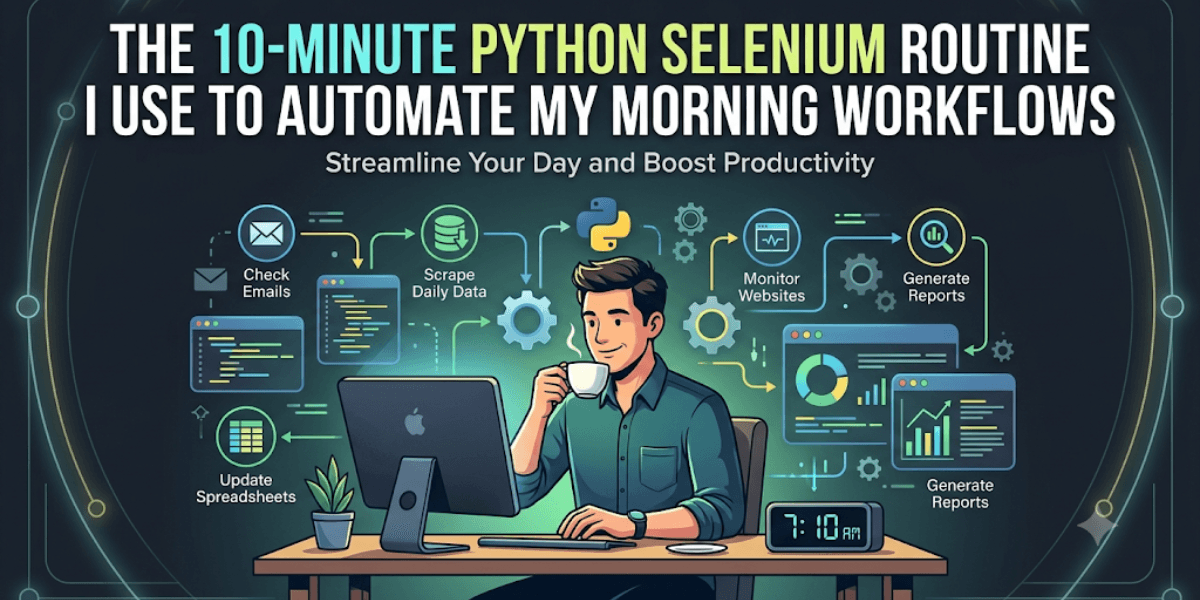
In the rapidly evolving landscape of web development and digital marketing, automation is no longer a luxury—it’s a necessity. Selenium, when combined with the versatile power of Python, emerges as the undisputed champion of browser automation. Whether you are a quality assurance engineer executing thousands of regression tests, a data scientist scraping dynamic content, or an SEO specialist monitoring keyword rankings, Selenium with Python offers the flexibility, speed, and robustness required for modern web interaction.
Selenium is a portable software-testing framework for web applications. Unlike simple HTTP request libraries that only fetch static HTML, Selenium controls an actual web browser. This means JavaScript executes, AJAX calls complete, and CSS animations render—precisely as a human user would experience. Python, with its readable syntax and vast ecosystem of libraries (pandas, BeautifulSoup, Django), acts as the perfect orchestrator.
This guide will leave no stone unturned. We will explore installation, core components, advanced navigation, SEO-specific automation scripts, handling dynamic content, scaling with headless browsers, and best practices that separate amateurs from professionals.
Understanding the Architecture: Python, Selenium, and WebDriver
Before writing a single line of code, one must understand the three pillars of Selenium automation. The Selenium Client Library (installed via pip) provides the Python bindings—these are the commands you write. The WebDriver is an executable that acts as a bridge between your Python script and the actual browser. Each major browser (Chrome, Firefox, Edge, Safari) has its own WebDriver. Finally, the Browser itself executes the actions.
This separation is critical. When you write driver.get("https://example.com"), Python serializes that command into the JSON Wire Protocol (or the newer W3C WebDriver protocol) and sends it to the WebDriver. The WebDriver translates it to browser-specific commands, and the browser navigates. The response travels back the same path.
Step-by-Step Installation on Windows, macOS, and Linux
Prerequisites: Ensure Python 3.7+ is installed. Verify with python --version in your terminal.
Step 1: Install the Selenium Package
Open a terminal or command prompt with administrator privileges and execute:
pip install seleniumFor isolated environments (recommended for projects), create a virtual environment:
python -m venv selenium_env
source selenium_env/bin/activate  # On macOS/Linux
selenium_env\Scripts\activate     # On Windows
pip install selenium
Step 2: Download the Appropriate WebDriver
- Chrome: Download ChromeDriver from the official site, matching your Chrome browser version (e.g., Chrome 122 needs ChromeDriver 122). Place the executable in a folder on your system PATH (e.g.,
/usr/local/binon macOS/Linux orC:\Windowson Windows). - Firefox: Use GeckoDriver. Similar process.
- Edge: Use EdgeDriver.
Alternative (Easier): Install webdriver-manager to auto-handle drivers:
pip install webdriver-managerThen in your Python script:
from selenium import webdriver
from selenium.webdriver.chrome.service import Service
from webdriver_manager.chrome import ChromeDriverManager

driver = webdriver.Chrome(service=Service(ChromeDriverManager().install()))
Step 3: Verify Installation
Create a file test_selenium.py:
from selenium import webdriver
driver = webdriver.Chrome()
driver.get("https://www.google.com")
print(driver.title)
driver.quit()
If you see “Google” printed, congratulations—you have a working Selenium environment.
Finding Elements by XPath, CSS, ID, and Class in Selenium Python
The Heart of Automation: Locators
A browser is a canvas of elements: buttons, text fields, links, divs, and tables. To interact with them, Selenium must first find them. The method driver.find_element() (returns single element) and driver.find_elements() (returns list) are your primary tools. Choosing the right locator strategy determines script speed and reliability.
Built-in Locator Strategies (Ranked by Performance & Stability)
- By.ID: The fastest and most reliable. HTML
idattributes are unique per page.
   from selenium.webdriver.common.by import By
search_box = driver.find_element(By.ID, "search-input")- By.NAME: Useful for form fields.
email_field = driver.find_element(By.NAME, "email")- By.CLASS_NAME: For elements sharing a class. Note: If multiple classes, use a CSS selector instead.
alert_div = driver.find_element(By.CLASS_NAME, "alert-success")- By.TAG_NAME: Broadest; good for collecting all links:
all_links = driver.find_elements(By.TAG_NAME, "a")- By.LINK_TEXT / By.PARTIAL_LINK_TEXT: Specifically for anchor tags.
sign_in_link = driver.find_element(By.LINK_TEXT, "Sign In")- By.CSS_SELECTOR: The professional’s choice. Combines flexibility and speed. Supports any CSS rule.
   # Element with id='main' inside a div with class='container'
   element = driver.find_element(By.CSS_SELECTOR, "div.container #main")
   # Attribute selector
button = driver.find_element(By.CSS_SELECTOR, "button[data-action='submit']")- By.XPATH: The most powerful, but slower and brittle if overused. Allows traversing the DOM upward (parent/sibling) and searching by text content.
   # Find element containing exact text
   element = driver.find_element(By.XPATH, "//button[text()='Submit']")
   # Find parent of a specific div
   parent = driver.find_element(By.XPATH, "//div[@id='child']/..")
Pro Tip: Wait for Elements Before Finding
Dynamic content often means the element isn’t immediately present. Always combine find_element with explicit waits:
from selenium.webdriver.support.ui import WebDriverWait
from selenium.webdriver.support import expected_conditions as EC

wait = WebDriverWait(driver, 10)
element = wait.until(EC.presence_of_element_located((By.ID, "dynamic-content")))
Handling Dynamic Content and JavaScript-Rendered Pages with Python
The Challenge of Modern Web 2.0
Traditional HTTP scrapers like requests and urllib receive the initial HTML document. However, React, Vue, Angular, and even plain AJAX load data after JavaScript execution. Selenium solves this because it hosts a real browser engine. But you still must instruct the browser to wait for those JavaScript calls to complete.
Explicit Waits vs. Implicit Waits vs. time.sleep()
time.sleep(3)– Absolute last resort. It wastes time if the element loads in 0.5 seconds, and fails if 3 seconds is insufficient. Never use in production.- Implicit Wait (
driver.implicitly_wait(10)) – Tells the WebDriver to poll the DOM for a certain duration when trying to find elements. Set once per driver session. Useful but limited because it only waits for presence, not for clickability or specific conditions. - Explicit Wait (Recommended) – Uses
WebDriverWaitwithexpected_conditions. This is precise and efficient.
Essential Expected Conditions for Dynamic Pages
from selenium.webdriver.support import expected_conditions as EC

# Wait for element to exist in DOM (visible or not)
wait.until(EC.presence_of_element_located((By.ID, "loading-spinner")))

# Wait for element to be visible (no hidden or display:none)
wait.until(EC.visibility_of_element_located((By.CLASS_NAME, "result")))

# Wait for element to be clickable (enabled and visible)
wait.until(EC.element_to_be_clickable((By.XPATH, "//button[text()='Load More']")))

# Wait for specific text in element
wait.until(EC.text_to_be_present_in_element((By.ID, "status"), "Complete"))

# Wait for iframe to be available
wait.until(EC.frame_to_be_available_and_switch_to_it((By.TAG_NAME, "iframe")))
Handling Infinite Scroll and AJAX Calls
Consider a news feed that loads 20 new articles when you scroll to the bottom. Here’s a robust pattern:
last_height = driver.execute_script("return document.body.scrollHeight")
while True:
    # Scroll to bottom
    driver.execute_script("window.scrollTo(0, document.body.scrollHeight);")
    # Wait for new content to load
    time.sleep(2)  # Short sleep, acceptable here for demonstration
    new_height = driver.execute_script("return document.body.scrollHeight")
    if new_height == last_height:
        break
    last_height = new_height
For AJAX calls, monitor a specific network response (requires Selenium 4’s DevTools Protocol):
from selenium.webdriver.chrome.options import Options
options = Options()
options.set_capability('goog:loggingPrefs', {'performance': 'ALL'})
driver = webdriver.Chrome(options=options)
# Then analyze logs to detect when an XHR completes.
Automating Form Submissions, Logins, and File Uploads
Filling Input Fields and Submitting Forms
The classic login automation demonstrates the core sequence: locate, clear, send keys, click.
from selenium import webdriver
from selenium.webdriver.common.by import By
from selenium.webdriver.common.keys import Keys

driver = webdriver.Chrome()
driver.get("https://example.com/login")

# Fill username
username_field = driver.find_element(By.ID, "username")
username_field.clear()
username_field.send_keys("my_username")

# Fill password
password_field = driver.find_element(By.NAME, "password")
password_field.send_keys("secure_password")

# Submit via button click
submit_button = driver.find_element(By.XPATH, "//button[@type='submit']")
submit_button.click()

# Alternative: press Enter on the last field
# password_field.send_keys(Keys.RETURN)
Handling CAPTCHAs and 2FA
Selenium cannot solve CAPTCHAs (by design, to prevent abuse). For legitimate automation:
- Bypass in test environments using pre-generated tokens.
- Use a service like 2Captcha or Anti-CAPTCHA (adds cost and complexity).
- Manual intervention – pause the script and ask the user to solve:
input("Please solve the CAPTCHA and press Enter to continue...")File Uploads – The Elegant Way
Uploading files is trivial because Selenium can send the local file path directly to an <input type="file"> element.
file_input = driver.find_element(By.CSS_SELECTOR, "input[type='file']")
file_input.send_keys("/absolute/path/to/myfile.pdf")
submit_upload = driver.find_element(By.ID, "upload-btn")
submit_upload.click()
Note: The file path must be absolute. The file input element does not need to be visible—only present in DOM.
Dropdowns and Select Elements
Use the Select class for <select> tags:
from selenium.webdriver.support.ui import Select

dropdown = Select(driver.find_element(By.ID, "country"))
dropdown.select_by_visible_text("United States")  # or
dropdown.select_by_value("US")                    # or
dropdown.select_by_index(0)                       # first option
Selenium for SEO: Crawling Meta Tags, Checking Redirects, and Monitoring Rankings
Why SEO Professionals Need Selenium
Google’s crawler renders pages, but third-party SEO tools often lack JavaScript execution. With Selenium, you can audit client-side rendered sites, detect soft 404s, verify canonical tags, ensure structured data is present, and even simulate mobile user agents.
Extracting Meta Tags and Title
def get_meta_content(driver, meta_name):
    try:
        meta = driver.find_element(By.XPATH, f"//meta[@name='{meta_name}']")
        return meta.get_attribute("content")
    except:
        return None

driver.get("https://yourwebsite.com")
title = driver.title
description = get_meta_content(driver, "description")
robots = get_meta_content(driver, "robots")
canonical = driver.find_element(By.XPATH, "//link[@rel='canonical']").get_attribute("href")

print(f"Title: {title}\nDesc: {description}\nCanonical: {canonical}")
Checking HTTP Status and Redirect Chain
Selenium does not directly expose HTTP status codes. However, you can analyze the browser’s performance logs (Chrome DevTools Protocol) or use a hybrid approach: first check with requests (for simple redirects), then render with Selenium.
For Selenium 4+, capture network events:
from selenium.webdriver.common.desired_capabilities import DesiredCapabilities

caps = DesiredCapabilities.CHROME
caps['goog:loggingPrefs'] = {'performance': 'ALL'}
driver = webdriver.Chrome(desired_capabilities=caps)
driver.get("https://example.com")
logs = driver.get_log('performance')
# Parse logs to find network.responseReceived events
Simpler method: check final URL after redirects:
driver.get("http://old-domain.com/page")
time.sleep(3)  # allow redirects
final_url = driver.current_url
if final_url != "http://old-domain.com/page":
    print(f"Redirected to {final_url}")
Simulating Mobile User-Agent for Mobile-First Indexing
Google uses mobile-first indexing. Test your site as a smartphone:
from selenium.webdriver.chrome.options import Options

mobile_emulation = {
    "deviceMetrics": {"width": 375, "height": 812, "pixelRatio": 3.0},
    "userAgent": "Mozilla/5.0 (iPhone; CPU iPhone OS 14_0 like Mac OS X) AppleWebKit/605.1.15 (KHTML, like Gecko) Version/14.0 Mobile/15E148 Safari/604.1"
}
options = Options()
options.add_experimental_option("mobileEmulation", mobile_emulation)
driver = webdriver.Chrome(options=options)
driver.get("https://your-site.com")
# Now inspect viewport and layout
Monitoring Keyword Rankings (Simulated Search)
Automate Google searches to see where your site ranks (be respectful of Google’s terms; use the official Search Console API for production):
def get_rank_for_keyword(driver, keyword, target_domain):
    driver.get("https://www.google.com")
    search_box = driver.find_element(By.NAME, "q")
    search_box.send_keys(keyword)
    search_box.send_keys(Keys.RETURN)
    wait = WebDriverWait(driver, 10)
    wait.until(EC.presence_of_element_located((By.ID, "search")))
    results = driver.find_elements(By.CSS_SELECTOR, "div.g a")
    for idx, result in enumerate(results, start=1):
        href = result.get_attribute("href")
        if href and target_domain in href:
            return idx
    return None
Headless Browsing with Selenium Python – Faster Scraping Without a GUI
Why Headless? Speed and Server Compatibility
By default, Selenium launches a visible browser window. For batch operations (e.g., nightly SEO audits), headless mode runs the browser in the background, using fewer system resources, eliminating UI overhead, and working on headless Linux servers.
Configuring Headless Mode
For Chrome:
from selenium.webdriver.chrome.options import Options

options = Options()
options.add_argument("--headless")  # Runs without GUI
options.add_argument("--no-sandbox")
options.add_argument("--disable-dev-shm-usage")  # Overcomes resource limits in Docker
options.add_argument("--window-size=1920,1080")  # Important: set viewport

driver = webdriver.Chrome(options=options)
driver.get("https://example.com")
print(driver.page_source)  # Works exactly as normal
driver.quit()
For Firefox:
from selenium.webdriver.firefox.options import Options as FirefoxOptions

ff_options = FirefoxOptions()
ff_options.add_argument("--headless")
driver = webdriver.Firefox(options=ff_options)
Caveats of Headless Mode
- Some websites detect headless browsers via JavaScript (e.g., checking
navigator.webdriverflag). Use stealth plugins or additional arguments:
  options.add_argument("--disable-blink-features=AutomationControlled")
  options.add_experimental_option("excludeSwitches", ["enable-automation"])
options.add_experimental_option('useAutomationExtension', False)- Screenshots still work, but take a full-page or element screenshot.
- Mouse interactions (hover, drag-drop) behave identically.
Performance Gains
Headless mode typically improves execution speed by 30–50%. For a script that processes 1,000 URLs, this reduces runtime from ~3 hours to ~1.5 hours. Combine with parallel processing (concurrent.futures) for even greater throughput.
Taking Screenshots and Capturing Full-Page Visuals for Debugging
The Critical Role of Visual Evidence
When an assertion fails or a scraper returns unexpected data, a screenshot provides immediate context. Selenium offers built-in methods for capturing the current viewport or an entire page.
Basic Screenshot
driver.save_screenshot("screenshot.png")
# OR
screenshot_binary = driver.get_screenshot_as_png()
Full-Page Screenshot (No Native Support – But Workaround)
Chrome’s native full-page screenshot is not exposed in Selenium directly. Use this robust method:
def take_full_page_screenshot(driver, filepath):
    original_size = driver.get_window_size()
    required_width = driver.execute_script('return document.body.parentNode.scrollWidth')
    required_height = driver.execute_script('return document.body.parentNode.scrollHeight')
    driver.set_window_size(required_width, required_height)
    driver.save_screenshot(filepath)
    driver.set_window_size(original_size['width'], original_size['height'])

take_full_page_screenshot(driver, "fullpage.png")
Element-Specific Screenshot
Capture only a specific DOM element:
element = driver.find_element(By.ID, "price-table")
element.screenshot("price_table.png")
Visual Regression Testing
Combine Selenium with image comparison libraries like PIL or OpenCV to detect UI changes across deploys:
from PIL import Image
import imagehash

# Capture baseline
driver.save_screenshot("baseline.png")
hash0 = imagehash.average_hash(Image.open("baseline.png"))

# After changes
driver.save_screenshot("new.png")
hash1 = imagehash.average_hash(Image.open("new.png"))
if hash0 - hash1 > 5:
    print("Visual regression detected!")
Advanced Navigation – Handling Windows, Tabs, Alerts, and Frames
Switching Between Browser Tabs and Windows
Modern web apps open popups, new tabs, or OAuth windows. Selenium’s window handles manage this.
# Store original window handle
original_window = driver.current_window_handle

# Click a link that opens new tab
driver.find_element(By.LINK_TEXT, "Open New Tab").click()

# Wait for new window/tab
wait.until(EC.number_of_windows_to_be(2))

# Switch to new tab
for handle in driver.window_handles:
    if handle != original_window:
        driver.switch_to.window(handle)
        break

# Do work in new tab
print(driver.title)

# Close new tab and switch back
driver.close()
driver.switch_to.window(original_window)
JavaScript Alerts, Confirms, and Prompts
# Trigger an alert (e.g., by clicking a button)
driver.find_element(By.ID, "alert-btn").click()

# Accept alert
alert = driver.switch_to.alert
alert.accept()   # OK/Yes
# alert.dismiss()  # Cancel/No
# For prompts: alert.send_keys("text")
Frames and Iframes
Frames require switching context. Use index, name, or element:
# By index (zero-based)
driver.switch_to.frame(0)

# By name or ID
driver.switch_to.frame("iframe-name")

# By WebElement
iframe_element = driver.find_element(By.XPATH, "//iframe[@src='...']")
driver.switch_to.frame(iframe_element)

# Return to main content
driver.switch_to.default_content()
Executing Custom JavaScript
Sometimes Selenium’s built-in methods are insufficient (e.g., scrolling to hidden element, changing attribute values). Use execute_script:
# Scroll to element
driver.execute_script("arguments[0].scrollIntoView();", element)

# Change input value directly
driver.execute_script("document.getElementById('age').value = 25;")

# Get page load performance
load_time = driver.execute_script("return performance.timing.loadEventEnd - performance.timing.navigationStart;")
Best Practices for Production-Grade Selenium Python Scripts
Use Explicit Waits Exclusively
Never hardcode sleeps. Rely on WebDriverWait with reasonable timeouts (5–15 seconds). For element absence, use invisibility_of_element_located.
Implement Robust Error Handling
Wrap interactions in try-except blocks with specific exceptions:
from selenium.common.exceptions import NoSuchElementException, TimeoutException, StaleElementReferenceException

try:
    element = wait.until(EC.element_to_be_clickable((By.ID, "submit")))
    element.click()
except TimeoutException:
    print("Submit button not clickable, moving on.")
except StaleElementReferenceException:
    # Element was detached from DOM; re-find it
    element = driver.find_element(By.ID, "submit")
    element.click()
Manage Browser Lifecycle Properly
Always use driver.quit() in a finally block or use context managers (if using Selenium 4+ with webdriver.Chrome() as context). This prevents memory leaks and zombie processes.
Logging and Reporting
Structure logging with Python’s logging module. Capture screenshots on failure.
Avoid Overusing XPath
XPath is powerful but slow and brittle. Prefer By.ID, By.CSS_SELECTOR, or By.NAME. If you must use XPath, avoid absolute paths (starting with /html/body/...). Use relative paths with attributes.
Maintain a Page Object Model (POM) for Large Projects
For scripts beyond 50 lines, organize using the Page Object Model. Example:
class LoginPage:
    def __init__(self, driver):
        self.driver = driver
        self.username_input = (By.ID, "username")
        self.password_input = (By.NAME, "password")
        self.login_button = (By.XPATH, "//button[text()='Log in']")

    def enter_username(self, username):
        self.driver.find_element(*self.username_input).send_keys(username)
        return self

    def enter_password(self, password):
        self.driver.find_element(*self.password_input).send_keys(password)
        return self

    def click_login(self):
        self.driver.find_element(*self.login_button).click()
Use Headless and Containerization for Production
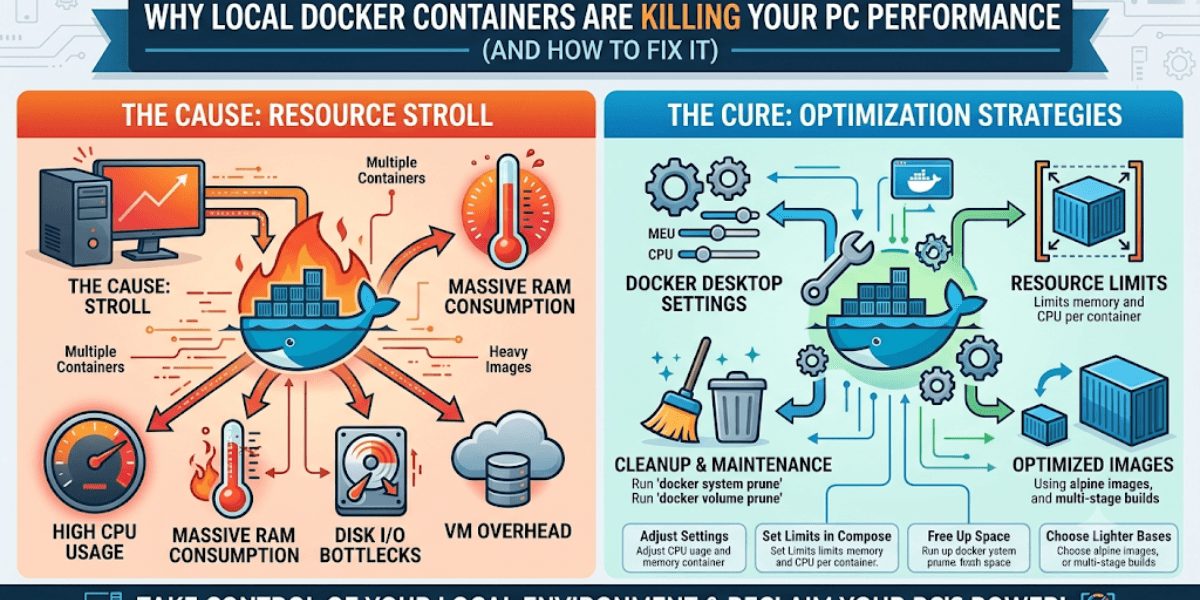
Deploy your Selenium scripts inside Docker containers with the official Selenium images (selenium/standalone-chrome). Use remote WebDriver (webdriver.Remote) for scaling across multiple machines.
Real-World Project: Build a JavaScript-Rendered Scraper for Dynamic SEO Data
Project Scenario: Extract Product Data from an Infinite-Scroll E-commerce Site
Target site: A React-based online store where product listings load as you scroll. We need product name, price, and availability.
Step-by-Step Implementation
import csv
from selenium import webdriver
from selenium.webdriver.common.by import By
from selenium.webdriver.support.ui import WebDriverWait
from selenium.webdriver.support import expected_conditions as EC
from selenium.webdriver.chrome.options import Options
import time

def scrape_dynamic_products(url, max_products=100):
    options = Options()
    options.add_argument("--headless")
    options.add_argument("--window-size=1920,1080")
    driver = webdriver.Chrome(options=options)
    driver.get(url)
    wait = WebDriverWait(driver, 10)

    products = []
    last_count = 0

    while len(products) < max_products:
        # Find all product cards currently loaded
        cards = driver.find_elements(By.CSS_SELECTOR, "div.product-card")

        for card in cards[last_count:]:
            try:
                name = card.find_element(By.CSS_SELECTOR, "h3.product-name").text
                price = card.find_element(By.CSS_SELECTOR, "span.price").text
                availability = card.find_element(By.CSS_SELECTOR, "span.stock").text
                products.append({"name": name, "price": price, "availability": availability})
            except:
                continue

        if len(products) >= max_products:
            break

        # Scroll to the last element to trigger infinite scroll
        driver.execute_script("arguments[0].scrollIntoView();", cards[-1])
        time.sleep(2)  # Brief pause for AJAX to load new content

        new_cards = driver.find_elements(By.CSS_SELECTOR, "div.product-card")
        if len(new_cards) == len(cards):
            # No new products loaded – reached end
            break
        last_count = len(cards)

    driver.quit()
    return products

# Save to CSV
data = scrape_dynamic_products("https://example-shop.com/products", max_products=250)
with open("products.csv", "w", newline='', encoding='utf-8') as f:
    writer = csv.DictWriter(f, fieldnames=["name", "price", "availability"])
    writer.writeheader()
    writer.writerows(data)

print(f"Scraped {len(data)} products.")
SEO Value from This Script
- Competitive pricing analysis – Track competitor prices weekly.
- Inventory monitoring – Alert when a product goes out of stock.
- Content aggregation – Build a price comparison website.
Conclusion: Elevate Your Automation Game with Selenium and Python
Selenium with Python is not merely a tool—it is a comprehensive ecosystem for interacting with the modern, dynamic web. From QA testing to SEO auditing to complex data extraction, the patterns described in this guide serve as your foundation. Remember the golden rules: always wait for elements, prefer robust locators, handle exceptions gracefully, and respect robots.txt and website terms of service.
As the web continues to evolve (WebAssembly, Shadow DOM, Web Components), Selenium’s development follows suit. Version 4 introduced relative locators (find element near another element) and improved DevTools integration. By mastering Selenium now, you future-proof your automation skills.
Start small: automate a daily login check for your web app. Then tackle a data scraping pipeline. Soon, you’ll wonder how you ever managed without the orchestration power of Selenium and Python’s elegant syntax. Happy automating!