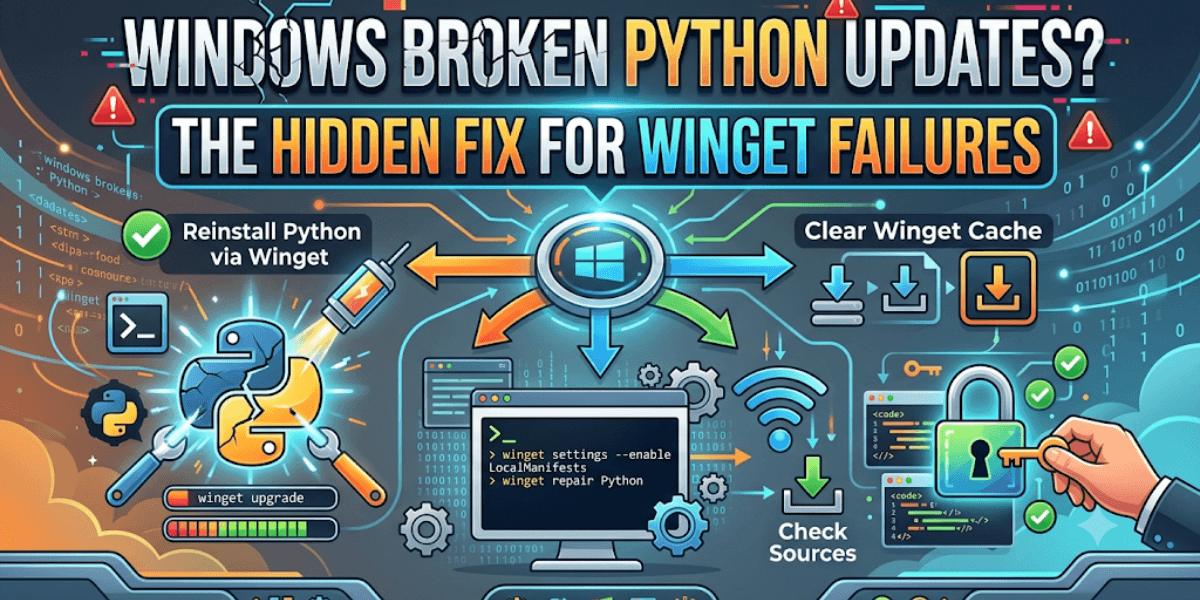
The Definitive Guide to winget upgrade python.python: Mastering Python Updates on Windows
Introduction: The Modern Way to Manage Python on Windows
Gone are the days when upgrading Python on Windows meant navigating to python.org, downloading the latest installer, running through a wizard, and then manually fiddling with your PATH environment variables. For years, this manual process was the standard, but it was prone to user error, left behind orphaned old versions, and was simply tedious to repeat every few months.
Enter Winget—the Windows Package Manager. Introduced by Microsoft to bring Windows into the fold of modern, Unix-like package management (comparable to apt on Ubuntu or brew on macOS), Winget automates the discovery, installation, and upgrading of software directly from the command line .
The command winget upgrade python.python is the epicenter of this efficiency. However, while the syntax is simple, the underlying mechanics—version detection, system PATH management, and side-by-side installations—require a deeper understanding to master.
This guide provides a comprehensive, expert-level walkthrough of using Winget to manage Python. We will move far beyond the basic command to explore how Winget identifies Python, why you might encounter errors, and how to architect your Windows environment to handle multiple Python versions seamlessly using this powerful tool.
Part 1: Understanding the Winget Ecosystem
What is Winget?
Winget is a command-line tool that serves as the client interface for the Windows Package Manager service. It is included by default in Windows 11 and modern builds of Windows 10 (version 1809 and later). If you have a recent Windows installation, typing winget --version into PowerShell or Command Prompt will confirm its presence .
Winget operates by querying a curated repository of software packages. When you request python.python, Winget checks this repository against your system’s installed applications (via the Windows Registry and ARP (Add/Remove Programs) entries) to determine if an update is available .
The Anatomy of python.python
Unlike Chocolatey or other package managers where a package name might be simply python, Winget uses a specific naming convention: Publisher.Package.
- Publisher:
Python(The Python Software Foundation) - Package ID:
Python(The core interpreter)
Therefore, the full ID is Python.Python. However, you may also see versions floating in the repository like Python.Python.3.12 or Python.Python.3.13. We will explore these nuances in the versioning section later.
Part 2: Executing the Upgrade – The Core Command
The simplest way to upgrade Python is the direct command:
winget upgrade python.pythonThis command instructs Winget to search the local machine for a package matching python.python, check the remote repository for a newer version, and download/install it if available .
What happens when you run this?
When you execute winget upgrade python.python, a specific sequence of events occurs behind the scenes.
First, Winget scans the Windows Registry—specifically the Uninstall keys—to identify which software is currently installed. It looks for a package with the ID Python.Python. Once located, it compares the installed version against the latest version available in the configured Winget sources (usually the Microsoft Community Repository).
If an update is available, Winget downloads the installer silently and runs it with default parameters. Depending on your Windows settings, you may see a standard Python installation progress bar flash on the screen. Once finished, the terminal will display a “Successfully installed” message .
The “Upgrade vs. Install” Paradox
Here is a crucial nuance specific to Python: To upgrade Python via Winget, you often use winget install.
Why? Because Python installers are designed to be side-by-side. If you have Python 3.11 installed and you run winget install python.python, Winget sees that the specific ID Python.Python points to the latest stable version (e.g., 3.13). It processes this as an “installation” of the new version.
Conversely, running winget upgrade python.python often results in the message: “No available upgrade found.” This happens because Winget relies on the package’s version number in the manifest. If the upgrade logic cannot strictly map the old version (3.11.x) to the new version (3.13.x) due to changes in the package ID, it assumes no upgrade path exists .
Real-world recommendation: To force an upgrade to the latest stable build, use the install command. It handles the transition smoothly.
winget install python.pythonPart 3: Troubleshooting Winget and Python Discrepancies
One of the most reported issues with Winget and Python is what developers call the “Ghost Version” problem. This occurs when there is a mismatch between what is installed on your system and what Winget thinks is installed. A common manifestation is having Python 3.12 installed, but Winget reporting version 3.11 and insisting an upgrade is available .
The Root Cause: Registry Rot
Winget reads the “DisplayName” and “DisplayVersion” strings from the registry. If you have historically installed Python using the official installer (.exe) and used Winget, or if you manually deleted the Python folder without uninstalling properly, orphaned registry entries remain.
These entries act as “breadcrumbs” that confuse the package manager. Winget sees a registry key for Python 3.11, checks the actual executable (which may be gone or overwritten), and throws an error because the checksums or file versions don’t match the repository manifest.
The Solution: The Nuclear Cleanup
If winget upgrade fails or reports erroneous versions, follow this strict cleaning protocol:
- Uninstall via Winget: Try the command
winget uninstall python.python. This is the cleanest method, as Winget will attempt to remove the registry keys it manages. - Manual Scavenging: If Winget fails, open the Control Panel or Windows Settings > Apps > Installed Apps. Uninstall every version of Python listed (Python 3.x, Python Launcher).
- Registry Purge (Caution Required): Open
regedit. Navigate to the following paths and delete any folders named “Python” or starting withPythononly if you are sure they are old:HKEY_CURRENT_USER\SOFTWARE\Microsoft\Windows\CurrentVersion\UninstallHKEY_LOCAL_MACHINE\SOFTWARE\Microsoft\Windows\CurrentVersion\UninstallHKEY_LOCAL_MACHINE\SOFTWARE\WOW6432Node\Microsoft\Windows\CurrentVersion\Uninstall(for 32-bit on 64-bit)
- Fresh Install: Once the system is clean, run
winget install python.python.
Part 4: Advanced Version Management with Winget
While winget upgrade python.python gets you the latest version, professional development often requires legacy versions. Winget excels at this.
Listing Available Versions
To see exactly which versions of Python are available in the Winget repository, use the search command with the --version or versions subcommand.
winget search python.python --versionsThis will output a list of every Python release available, from 3.7.x to 3.13.x.
Installing a Specific Version
You do not need to “upgrade” from 3.11 to 3.8 (which is a downgrade). Instead, you install them side-by-side using the specific version string.
winget install python.python --version 3.11.9The Concurrent Upgrade Strategy
Because Windows determines which Python runs by checking the PATH variable, installing a new version does not delete the old one. This is both a blessing and a curse.
To successfully “upgrade” your default environment:
- Install the new Python version:
winget install python.python.3.13(Note: The specific ID may bePython.Python.3.13). - Edit your System Environment Variables (
sysdm.cpl). - Move the
C:\Users\YourName\AppData\Local\Programs\Python\Python313folder above the older Python entries in thePathvariable. - Alternatively, use the
pylauncher:py -3.13to call the new version explicitly.
Part 5: Automating the Upgrade Workflow
For system administrators or power users, running single commands is okay, but scripting is better. Winget integrates seamlessly into PowerShell scripts.
Script: The Smart Python Refresh
This script leverages Winget to ensure Python is up to date, handles the PATH refresh, and validates the install.
# refresh-python.ps1
Write-Host "Checking current Python version..." -ForegroundColor Cyan
python --version

Write-Host "`nInitiating Winget Upgrade for Python..." -ForegroundColor Yellow

# Attempt upgrade. Use --silent to suppress UI pop-ups.
$upgradeResult = winget upgrade python.python --silent --accept-package-agreements

# Check if upgrade was needed or failed
if ($LASTEXITCODE -eq 0) {
    Write-Host "Winget completed the operation." -ForegroundColor Green
} else {
    Write-Host "Upgrade command failed or not needed. Attempting install to force latest..." -ForegroundColor Yellow
    winget install python.python --silent --accept-package-agreements
}

# Refresh the environment variables in the current session without reboot
# (Refresh PATH by reloading environment variables)
$env:Path = [System.Environment]::GetEnvironmentVariable("Path","Machine") + ";" + [System.Environment]::GetEnvironmentVariable("Path","User")

Write-Host "`nUpgrade process finished. Verifying version:" -ForegroundColor Cyan
python --version

# Cleanup orphaned installer files (Winget cache)
Write-Host "`nCleaning Winget cache..." -ForegroundColor DarkYellow
winget settings --enable localManifestFiles
# Note: Actual cache cleanup often requires manual deletion or specific third-party tools,
# but Winget generally manages its download cache automatically.
Write-Host "Operation Complete." -ForegroundColor Green
Handling --uninstall-previous
One particularly useful flag for upgrades is --uninstall-previous. By default, when you install Python 3.13 alongside 3.11, you keep both. If you want the upgrade to behave more like traditional software (where the old version is removed), use this flag :
winget upgrade python.python --uninstall-previousCaution: This will attempt to remove the older version. Ensure your projects do not rely on the specific legacy interpreter path before running this.
Part 6: The Silent Upgrade – DevOps and CI/CD
For development teams, manually upgrading Python on every workstation is not feasible. Winget can be integrated into CI/CD pipelines or login scripts to ensure environment parity.
The Configuration File Method
Microsoft allows you to define a winget.configure file (YAML format). You can use the winget configure command to idempotently ensure a specific Python version is present .
A sample configuration file snippet for Python:
# python-config.yaml
properties:
  resources:
    - resource: Microsoft.WinGet.DSC/WinGetPackage
      directives:
        description: Install Python 3.13
        allowPrerelease: true
      settings:
        id: Python.Python.3.13
        source: winget
        version: 3.13.0
    - resource: Microsoft.WinGet.DSC/WinGetPackage
      directives:
        description: Install Python Launcher
      settings:
        id: Python.Launcher
        source: winget
  version: 1.0.0
Running winget configure ./python-config.yaml will bring any machine into compliance with this standard.
Part 7: Security Implications of Winget Upgrades
When you run winget upgrade python.python, you are trusting the Microsoft Community Repository. While generally safe, it is worth understanding the security model.
The Hash Check
Winget validates the integrity of the Python installer by comparing its hash against the hash listed in the package manifest. If the downloaded file has been tampered with or corrupted, Winget will refuse to install it. You can force an override with --ignore-security-hash, but this is strongly discouraged in production environments .
Package Agreements
When upgrading Python, you may occasionally be prompted to accept the Python Software Foundation License. To script the upgrade, you must pass the --accept-package-agreements flag.
winget upgrade python.python --accept-package-agreementsConclusion: Mastering the Python/Winget Fusion
The command winget upgrade python.python is more than just an incantation to get a newer version of Python. It is a gateway to modern, automated, and reproducible Windows management.
The key takeaways for professionals are:
- Use
installfor major version jumps: Winget’s versioning logic sometimes treats major Python updates as new packages.winget install python.pythonis often the most reliable “upgrade” command. - Registry hygiene is critical: If Winget lies about your version, clean the registry manually. Winget is only as smart as the data left behind by other installers.
- Embrace Side-by-Side: Do not fight Windows’ side-by-side model. Use Winget to install multiple specific versions (
winget install Python.Python.3.11;winget install Python.Python.3.12) and use thepylauncher to switch between them. - Automate Everything: Integrate
winget upgradeinto your PowerShell profile or team onboarding scripts. The time saved by automating a Python upgrade across a fleet of machines adds up to significant engineering hours.
By mastering the relationship between the Windows Package Manager and the Python ecosystem, you transform Python environment maintenance from a monthly chore into a seamless, background process. The next time a new Python feature drops, you will be ready—not with a web browser, but with a terminal and a single, powerful command.