Welcome to the World of Python
Imagine being able to talk to your computer and have it understand exactly what you want it to do. You don’t need to learn a complex, secret code or memorize hundreds of strange symbols. You just need Python—a programming language so simple and friendly that complete beginners often build useful programs within their first week of learning.
This guide is written for people who have never written a single line of code in their lives. Maybe you’re a student who wants to learn programming. Maybe you’re a professional in a non-technical field who wants to automate boring tasks. Maybe you’re just curious about what programming actually is. Whatever your background, if you can read English and do basic math, you can learn Python.

Let’s begin with a promise: By the time you finish this guide, you will understand the fundamental concepts of programming, you will have written several working programs, and you will feel confident enough to continue learning on your own. No prior experience needed. No fancy computer required. Just you, your curiosity, and a willingness to try things.
Chapter 1: What on Earth Is Python? (And Why Should You Care?)
Python Is Not a Snake (Well, Not This One)
The name “Python” comes from “Monty Python’s Flying Circus,” a British comedy show from the 1970s. The creator, Guido van Rossum, was a fan of the show and wanted a name that was short, unique, and slightly mysterious. So when you see Python programmers using weird examples like “spam” and “eggs” in their code, now you know why—it’s a tribute to a Monty Python sketch.
What Is Programming, Really?
Before we talk about Python, let’s understand what programming actually is. Programming is simply giving instructions to a computer. That’s all. Every app on your phone, every website you visit, every game you play—all of it is just a long list of instructions telling the computer what to do.
Think of it like a recipe. A recipe for chocolate chip cookies contains step-by-step instructions: preheat the oven, mix the flour and sugar, add the eggs, drop spoonfuls onto a baking sheet, bake for 12 minutes. A computer program is exactly the same—a series of steps that the computer follows, one after another, to accomplish a task.
The difference is that computers are incredibly dumb. They do exactly what you tell them to do, nothing more and nothing less. If you tell a computer to add 2 and 2, it will give you 4. But if you accidentally tell it to add 2 and “cat,” it will get confused and stop. This is why programming requires precision—every instruction must be clear and exact.
Why Python for Beginners?
There are hundreds of programming languages, but Python has become the world’s most popular first language for several good reasons:
It Reads Like English. Consider this simple program:
if temperature > 80:
    print("It's hot outside!")
else:
    print("It's not too hot.")
Even without knowing anything about programming, you can probably guess what this does. That’s the beauty of Python—it was designed to be readable.
It Forgives Small Mistakes. Some languages require you to add semicolons at the end of every line and use curly braces to mark blocks of code. Python is more relaxed. As long as you indent your code properly (which you should do anyway to keep it readable), Python will understand you.
You Can Start Immediately. You don’t need to install complicated development environments or learn about memory management. Download Python, open a text editor, and you’re ready to go.
It’s Actually Useful. Many beginners learn programming on languages that are only used in classrooms. Python, by contrast, powers real-world applications. Instagram uses Python. Netflix uses Python. NASA uses Python. Google, Spotify, Dropbox, Uber—all of them rely on Python for critical systems.
What You Can Build with Python
Python is a “general-purpose” language, which means you can build almost anything with it:
- Automation scripts that rename hundreds of files in seconds
- Web scrapers that collect data from websites
- Simple games like hangman, tic-tac-toe, or number guessing
- Data visualizations that turn spreadsheets into beautiful charts
- Web applications (using frameworks like Django or Flask)
- Desktop applications with graphical user interfaces
By the end of this guide, you’ll have built several of these yourself.
Chapter 2: Getting Python on Your Computer
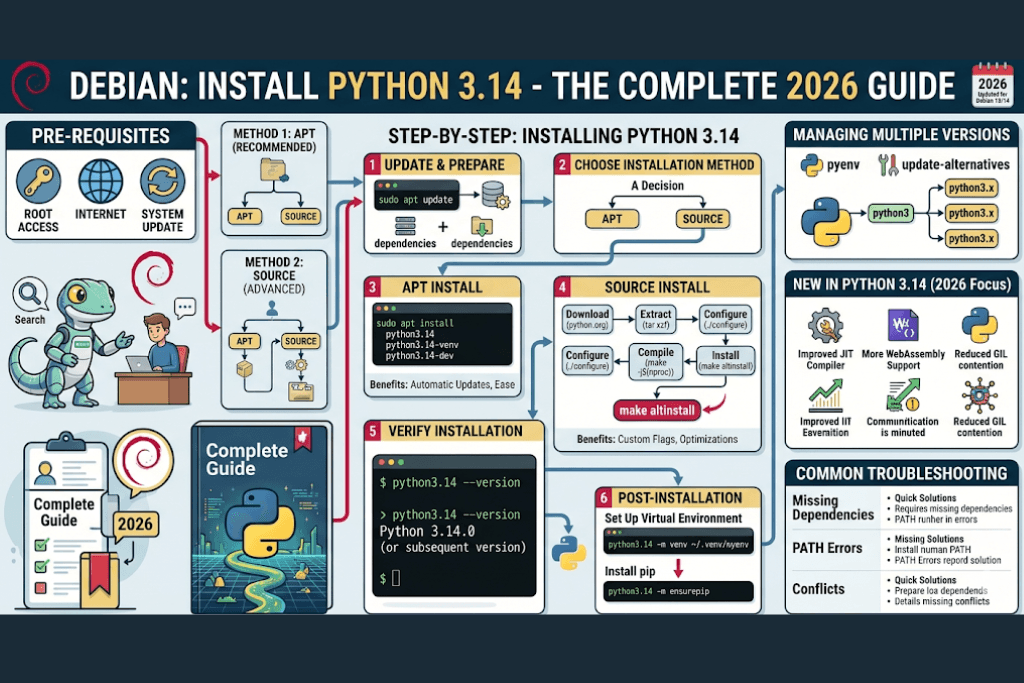
Let’s get your computer ready to run Python code. This section assumes you know nothing about the command line, package managers, or any of that technical jargon. We’ll keep everything as simple as possible.
Step 1: Download Python
Open your web browser and go to python.org. Look for the big yellow button that says “Download Python” and click it. The website will automatically detect your operating system and give you the correct installer.
If you’re on Windows, you’ll get a .exe file. On Mac, a .pkg file. On Linux, you probably already have Python installed, but we’ll check in a moment.
Step 2: Run the Installer
For Windows Users:
Double-click the downloaded file. The installer will open. BEFORE YOU CLICK ANYTHING ELSE, look at the bottom of the installer window. You will see a checkbox that says “Add Python to PATH.” CLICK THAT CHECKBOX. This is the most important step. Many beginners skip it and then can’t run Python from the command line. After checking that box, click “Install Now.”
For Mac Users:
Double-click the .pkg file and follow the instructions. The installer will guide you through the process. Macs are generally more straightforward—you won’t need to mess with PATH settings.
Step 3: Verify the Installation
Open your computer’s command line:
- Windows: Press the Windows key, type “cmd,” and press Enter
- Mac: Press Command+Space, type “terminal,” and press Enter
- Linux: Look for “Terminal” in your applications menu
In the command line, type:
python --versionOr on some systems:
python3 --versionYou should see something like “Python 3.12.0” or similar. If you see a version number starting with 3, you’re good to go. If you get an error message, something went wrong with the installation—go back and try again, making sure to check the “Add to PATH” box on Windows.
Your First Python Program (Already!)
Now type this in your command line:
pythonOr:
python3You should see something like:
Python 3.12.0 (default, ...)
[GCC ...] on linux
Type "help", "copyright", "credits" or "license" for more information.
>>>
Those three arrows (>>>) are Python’s way of saying, “I’m ready for instructions.” This is called the interactive shell, and it’s one of Python’s best features for beginners. You can type Python code here and see the results immediately.
Type this:
print("Hello, world!")Press Enter. You’ll see:
Hello, world!Congratulations! You just wrote your first Python program. The print() function simply displays whatever is inside the parentheses. In this case, it displayed the text “Hello, world!” which is a programming tradition dating back decades.
To exit the interactive shell, type:
exit()Or press Ctrl+Z on Windows, Ctrl+D on Mac/Linux.
Using IDLE (The Built-in Editor)
Python comes with a simple editor called IDLE. You can find it by searching your computer for “IDLE” after installing Python. IDLE gives you a nicer environment for writing and running Python code. It color-codes your code to make it more readable and lets you save your programs as files.
For the rest of this guide, you can use IDLE, any text editor (like Notepad on Windows or TextEdit on Mac), or even the command line with the interactive shell. I recommend using IDLE for your first few programs because it’s simple and designed specifically for learning Python.
Chapter 3: Your First Real Programs (No Experience Required)
Now that Python is installed, let’s actually use it. We’ll start with the absolute basics and build up slowly. Don’t skip any section—each one introduces concepts you’ll need later.
The Print Function (Your First Tool)
The print() function is your window to the world. It shows output from your program. You can print text (called “strings” in programming), numbers, and many other things.
print("Hello")
print("My name is Python")
print(42)
print(3.14159)
Each print() statement starts a new line. If you want to print multiple things on the same line, separate them with commas:
print("The answer is", 42)This prints: The answer is 42
You can also print blank lines by using print() with nothing inside:
print("First line")
print()
print("Third line with a blank line above")
Variables: Giving Names to Values
A variable is like a labeled box where you store information. Instead of typing "Hello" every time, you can put it in a variable and use the variable name.
message = "Hello, world!"
print(message)
The equals sign (=) is called the assignment operator. It takes whatever is on the right side and stores it in the variable on the left side. Think of it as an arrow pointing to the left: message <- "Hello, world!"
Variable names can contain letters, numbers, and underscores, but they cannot start with a number. They are case-sensitive, meaning myName and MyName are different variables.
Let’s try some examples:
name = "Alice"
age = 25
height = 5.7
is_student = True

print("Name:", name)
print("Age:", age)
print("Height:", height)
print("Is student:", is_student)
Variables are powerful because they can change. You can assign a new value to the same variable name:
score = 0
print(score)  # Prints 0
score = 100
print(score)  # Prints 100
score = score + 50
print(score)  # Prints 150 (it calculates 100 + 50)
The last line, score = score + 50, might look strange. Remember that Python calculates the right side first. It takes the current value of score (which is 100), adds 50 to get 150, then stores that new value back into score.
Numbers and Math
Python can do all the math you learned in school. Here are the basic math operators:
| Operator | Operation | Example | Result |
|---|---|---|---|
+ | Addition | 5 + 3 | 8 |
- | Subtraction | 10 - 4 | 6 |
* | Multiplication | 7 * 6 | 42 |
/ | Division | 15 / 4 | 3.75 |
// | Floor division (discards remainder) | 15 // 4 | 3 |
% | Modulo (gives remainder) | 15 % 4 | 3 |
** | Exponentiation (power) | 2 ** 3 | 8 |
Try these in the interactive shell:
print(5 + 3)
print(10 - 4)
print(7 * 6)
print(15 / 4)
You can combine operations. Python follows the standard order of operations (PEMDAS: Parentheses, Exponents, Multiplication/Division, Addition/Subtraction):
print(2 + 3 * 4)    # 14 (multiplication happens first)
print((2 + 3) * 4)  # 20 (parentheses force addition first)
Text (Strings)
Text in Python is called a “string.” You can use either single quotes or double quotes, as long as you’re consistent within each string:
first_name = "John"
last_name = 'Smith'
Both are valid. Use double quotes if your string contains a single quote (like “John’s book”) and single quotes if your string contains double quotes (like ‘He said “Hello”‘).
You can combine strings using the + operator:
first = "Hello"
last = "World"
full = first + " " + last
print(full)  # Prints "Hello World"
You can also repeat strings with the * operator:
laugh = "ha" * 5
print(laugh)  # Prints "hahahahaha"
Getting Input from the User
A program that only prints things is like a one-way conversation. The input() function lets your program listen to the user.
name = input("What is your name? ")
print("Hello, " + name + "!")
When you run this, the program will show “What is your name?” and wait for you to type something. Whatever you type will be stored in the name variable, and then the program will greet you.
Important: input() always returns a string. Even if the user types a number, Python treats it as text. To do math with user input, you need to convert it:
age_text = input("How old are you? ")
age = int(age_text)  # Convert from string to integer
next_age = age + 1
print("Next year you will be", next_age)
The int() function converts a string to an integer. There’s also float() for decimal numbers and str() for converting numbers to strings.
A Complete First Program
Let’s put everything together into a program that actually does something useful:
# Simple greeting program
print("=" * 30)
print("WELCOME TO MY PROGRAM")
print("=" * 30)

name = input("What is your name? ")
color = input("What is your favorite color? ")

print()
print("Hello, " + name + "!")
print("Your favorite color is " + color + ".")
print("That's a great choice!")

age_text = input("\nHow old are you? ")
age = int(age_text)
year_born = 2025 - age  # Assuming current year is 2025

print("You were probably born around", year_born)
The \n in the last input() creates a new line before showing the prompt. Run this program and see what happens. Experiment by changing messages or adding new questions.
Chapter 4: Making Decisions (If Statements)
So far, our programs have been linear—they start at the top and run every line in order. But real programs need to make decisions. They need to do one thing if a condition is true, and something else if it’s false.
The if Statement
The if statement checks a condition and runs code only if that condition is true.
temperature = 25

if temperature > 30:
    print("It's hot outside!")
Try changing temperature to 35 and run it. The message appears. Change it to 25 and run it again—nothing happens. That’s because the condition (temperature > 30) was false, so Python skipped the indented code.
Notice the indentation. In Python, indentation is not just for looks—it actually tells Python which code belongs to the if statement. The indented lines (usually four spaces) are called a “block.” Everything in that block runs only if the condition is true.
Adding else
What if you want to do something when the condition is false? That’s where else comes in:
temperature = 25

if temperature > 30:
    print("It's hot outside!")
else:
    print("It's not hot outside.")
Now the program always prints something. If it’s hot, it prints the first message. If it’s not, it prints the second.
Adding elif (Else If)
What if you have more than two possibilities? elif (short for “else if”) lets you check multiple conditions:
temperature = 25

if temperature > 30:
    print("It's hot outside!")
elif temperature > 20:
    print("It's a nice day.")
elif temperature > 10:
    print("It's a bit chilly.")
else:
    print("It's cold outside!")
Python checks the conditions from top to bottom. As soon as one condition is true, it runs that block and skips the rest. So if temperature is 25, it sees that temperature > 30 is false, then checks temperature > 20 which is true, so it prints “It’s a nice day” and never checks the other conditions.
Comparison Operators (How to Compare Things)
To write conditions, you need comparison operators. They all return either True or False.
| Operator | Meaning | Example (True) | Example (False) |
|---|---|---|---|
== | Equal to | 5 == 5 | 5 == 3 |
!= | Not equal to | 5 != 3 | 5 != 5 |
> | Greater than | 10 > 5 | 5 > 10 |
< | Less than | 3 < 7 | 7 < 3 |
>= | Greater than or equal | 5 >= 5 | 4 >= 5 |
<= | Less than or equal | 3 <= 5 | 6 <= 5 |
Combining Conditions
You can combine multiple conditions using and and or:
andmeans both conditions must be trueormeans at least one condition must be true
age = 25
has_license = True

if age >= 18 and has_license:
    print("You can drive a car.")
day = "Saturday"
if day == "Saturday" or day == "Sunday":
print("It's the weekend!")You can also use not to reverse a condition:
is_raining = False
if not is_raining:
    print("Let's go outside!")
A Practical Example: Password Checker
Let’s make a program that checks if a password is good enough:
password = input("Create a password: ")

if len(password) < 8:
    print("Password too short! Must be at least 8 characters.")
elif len(password) < 12:
    print("Password is okay, but longer would be better.")
else:
    print("Great password length!")

# Check if password contains a number
has_number = False
for character in password:
    if character.isdigit():
        has_number = True

if has_number:
    print("Good - your password contains a number.")
else:
    print("Consider adding a number to your password.")
The len() function returns the length of a string. The .isdigit() method checks if a character is a number (0-9). We’ll learn more about the for loop in the next chapter.
Chapter 5: Repeating Things (Loops)
Computers are great at doing the same thing over and over without getting bored. Loops let you repeat code, and they’re one of the most powerful tools in programming.
The while Loop
A while loop keeps running as long as a condition is true.
count = 1
while count <= 5:
    print("Count is", count)
    count = count + 1

print("Loop finished!")
Let’s trace through this:
countstarts at 1- Check if
count <= 5(yes, 1 is <= 5) → run the loop - Print “Count is 1”
- Add 1 to count → count becomes 2
- Go back to the top, check again (2 <= 5) → run again
- This continues until count becomes 6
- When count is 6,
6 <= 5is false, so Python skips the loop and continues to the line after it
Warning: If you forget to change the variable that controls the loop (like forgetting count = count + 1), the condition will never become false, and the loop will run forever. This is called an infinite loop, and it will freeze your program. Press Ctrl+C to stop it if this happens.
The for Loop
The for loop is perfect when you know exactly how many times you want to repeat. It’s often used with the range() function.
for i in range(5):
    print("This is repetition number", i)
This prints:
This is repetition number 0
This is repetition number 1
This is repetition number 2
This is repetition number 3
This is repetition number 4
Notice that it starts at 0 and goes up to (but not including) 5. This is because computers often start counting at 0.
You can customize range():
# range(start, stop) - goes from start to stop-1
for i in range(1, 6):
    print(i)  # Prints 1,2,3,4,5

# range(start, stop, step) - steps by a certain amount
for i in range(0, 10, 2):
    print(i)  # Prints 0,2,4,6,8

# Count backwards
for i in range(5, 0, -1):
    print(i)  # Prints 5,4,3,2,1
Looping Through Strings
You can loop through each character in a string:
word = "Python"
for letter in word:
    print(letter)
This prints:
P
y
t
h
o
n
break and continue
Sometimes you want to exit a loop early. break does exactly that:
for i in range(10):
    if i == 5:
        break  # Stop the loop when i reaches 5
    print(i)  # Prints 0,1,2,3,4
Sometimes you want to skip the rest of the current repetition and go to the next one. continue does that:
for i in range(5):
    if i == 2:
        continue  # Skip printing 2
    print(i)  # Prints 0,1,3,4
A Practical Example: Number Guessing Game
Let’s make a simple game where the computer thinks of a number and you try to guess it:
import random

secret_number = random.randint(1, 100)
attempts = 0
max_attempts = 7

print("I'm thinking of a number between 1 and 100.")
print("You have", max_attempts, "attempts to guess it.")

while attempts < max_attempts:
    guess = int(input("Your guess: "))
    attempts = attempts + 1

    if guess < secret_number:
        print("Too low!")
    elif guess > secret_number:
        print("Too high!")
    else:
        print("Correct! You guessed it in", attempts, "attempts.")
        break  # Exit the loop when guessed correctly

if guess != secret_number:
    print("Sorry, you ran out of attempts. The number was", secret_number)
The line import random at the top brings in Python’s random number module. The randint(1, 100) function gives us a random number between 1 and 100.
Chapter 6: Storing Collections of Data (Lists)
So far, we’ve only stored one piece of information at a time in a variable. But what if you need to store a list of items? That’s where lists come in.
Creating Lists
A list is created with square brackets, with items separated by commas:
fruits = ["apple", "banana", "orange", "grape"]
numbers = [1, 2, 3, 4, 5]
mixed = ["hello", 42, 3.14, True]
empty = []
Lists can contain any type of data, and they can mix different types.
Accessing Items (Indexing)
Each item in a list has a position called an index. The first item is at index 0, the second at index 1, and so on.
fruits = ["apple", "banana", "orange", "grape"]
print(fruits[0])  # Prints "apple"
print(fruits[2])  # Prints "orange"
You can also use negative indexes to count from the end:
print(fruits[-1])  # Prints "grape" (last item)
print(fruits[-2])  # Prints "orange" (second to last)
Changing Items
Lists are mutable, which means you can change them after they’re created:
fruits[1] = "blueberry"  # Change "banana" to "blueberry"
print(fruits)  # ["apple", "blueberry", "orange", "grape"]
Adding Items
There are several ways to add items:
fruits.append("mango")        # Add to the end
print(fruits)  # ["apple", "blueberry", "orange", "grape", "mango"]

fruits.insert(1, "kiwi")      # Insert at position 1
print(fruits)  # ["apple", "kiwi", "blueberry", "orange", "grape", "mango"]
Removing Items
fruits.remove("orange")       # Remove by value
last = fruits.pop()           # Remove and return the last item
print(last)  # "mango"

del fruits[0]                 # Remove by index (first item)
Getting the Length
The len() function tells you how many items are in a list:
print(len(fruits)) # Number of fruitsLooping Through Lists
You can loop through each item in a list using a for loop:
fruits = ["apple", "banana", "orange", "grape"]
for fruit in fruits:
    print("I like", fruit)
This prints:
I like apple
I like banana
I like orange
I like grape
List Slicing
You can extract portions of a list using slice notation: [start:end] (end is not included):
numbers = [0, 1, 2, 3, 4, 5]

print(numbers[0:3])   # [0, 1, 2]
print(numbers[2:5])   # [2, 3, 4]
print(numbers[:3])    # [0, 1, 2] (start defaults to 0)
print(numbers[3:])    # [3, 4, 5] (end defaults to end)
print(numbers[::2])   # [0, 2, 4] (step of 2)
Useful List Methods
| Method | What It Does | Example |
|---|---|---|
append(item) | Add to end | numbers.append(6) |
insert(index, item) | Insert at position | numbers.insert(0, -1) |
remove(item) | Remove first occurrence | numbers.remove(3) |
pop(index) | Remove at index (default last) | numbers.pop() |
index(item) | Find position of item | numbers.index(4) |
sort() | Sort the list | numbers.sort() |
reverse() | Reverse the order | numbers.reverse() |
count(item) | Count occurrences | numbers.count(2) |
A Practical Example: To-Do List Manager
Let’s build a simple to-do list program:
todo_list = []

print("Simple To-Do List Manager")
print("Commands: add, show, remove, quit")

while True:
    command = input("\nWhat would you like to do? ").lower()

    if command == "add":
        task = input("Enter task: ")
        todo_list.append(task)
        print("Task added!")

    elif command == "show":
        if len(todo_list) == 0:
            print("Your to-do list is empty.")
        else:
            print("\nYour tasks:")
            for i, task in enumerate(todo_list):
                print(f"{i+1}. {task}")

    elif command == "remove":
        if len(todo_list) == 0:
            print("Nothing to remove.")
        else:
            print("\nYour tasks:")
            for i, task in enumerate(todo_list):
                print(f"{i+1}. {task}")
            task_num = int(input("Enter task number to remove: "))
            if 1 <= task_num <= len(todo_list):
                removed = todo_list.pop(task_num - 1)
                print(f"Removed: {removed}")
            else:
                print("Invalid task number.")

    elif command == "quit":
        print("Goodbye!")
        break

    else:
        print("Unknown command. Try: add, show, remove, quit")
The enumerate() function gives you both the index and the value when looping through a list.
Chapter 7: Reusable Code (Functions)
Functions let you give a name to a block of code and use it multiple times. This is one of the most important concepts in programming because it saves you from repeating yourself.
Defining and Calling Functions
Use def to define a function:
def greet():
    print("Hello!")
    print("Welcome to Python!")

# Call the function
greet()
greet()  # You can call it as many times as you want
Functions with Parameters
Parameters are like variables that get their value from the code that calls the function:
def greet_person(name):
    print(f"Hello, {name}!")
    print(f"Nice to meet you, {name}.")

greet_person("Alice")
greet_person("Bob")
This prints:
Hello, Alice!
Nice to meet you, Alice.
Hello, Bob!
Nice to meet you, Bob.
You can have multiple parameters:
def add_and_display(a, b):
    result = a + b
    print(f"{a} + {b} = {result}")

add_and_display(5, 3)   # Prints "5 + 3 = 8"
add_and_display(10, 7)  # Prints "10 + 7 = 17"
Functions with Return Values
Sometimes you want a function to calculate something and send the result back without printing it. That’s what return does:
def add(a, b):
    return a + b

result = add(5, 3)
print(result)  # Prints 8

# You can use the returned value in expressions
double = add(5, 3) * 2
print(double)  # Prints 16
Once a function hits a return statement, it immediately stops and sends the value back. Any code after return won’t run.
Default Parameter Values
You can give parameters default values. If the caller doesn’t provide a value, the default is used:
def greet(name, greeting="Hello"):
    print(f"{greeting}, {name}!")

greet("Alice")                    # Uses default: "Hello, Alice!"
greet("Bob", "Hi")                # "Hi, Bob!"
greet("Charlie", greeting="Hey")  # "Hey, Charlie!"
Variable Scope (Where Variables Live)
Variables created inside a function are local to that function. They don’t exist outside:
def my_function():
    x = 10  # Local variable
    print(x)

my_function()
print(x)  # ERROR! x is not defined outside the function
Variables created outside functions are global and can be accessed inside functions (but not changed without the global keyword):
global_var = 100

def read_global():
    print(global_var)  # This works

def try_to_change():
    global_var = 200  # This creates a NEW local variable
    print(global_var)  # Prints 200 (local version)

def actually_change():
    global global_var  # This tells Python to use the global one
    global_var = 200

read_global()      # Prints 100
try_to_change()    # Prints 200
print(global_var)  # Still 100! (local change didn't affect global)
actually_change()  # Actually changes the global
print(global_var)  # Now 200
In practice, you should avoid modifying global variables inside functions. It makes your code harder to understand and debug.
Docstrings (Documenting Functions)
Always document your functions so you (and others) remember what they do:
def calculate_area(length, width):
    """
    Calculate the area of a rectangle.

    Parameters:
    length (float): The rectangle's length
    width (float): The rectangle's width

    Returns:
    float: The area (length * width)
    """
    return length * width
The triple-quoted string right after the function definition is called a docstring. You can view it with:
help(calculate_area)A Practical Example: Temperature Converter
Let’s build a function that converts temperatures:
def celsius_to_fahrenheit(celsius):
    """Convert Celsius to Fahrenheit"""
    return (celsius * 9/5) + 32

def fahrenheit_to_celsius(fahrenheit):
    """Convert Fahrenheit to Celsius"""
    return (fahrenheit - 32) * 5/9

def display_temperature_conversion():
    """Interactive temperature converter"""
    print("Temperature Converter")
    print("1: Celsius to Fahrenheit")
    print("2: Fahrenheit to Celsius")

    choice = input("Choose (1/2): ")

    if choice == "1":
        c = float(input("Enter Celsius: "))
        f = celsius_to_fahrenheit(c)
        print(f"{c}°C = {f}°F")
    elif choice == "2":
        f = float(input("Enter Fahrenheit: "))
        c = fahrenheit_to_celsius(f)
        print(f"{f}°F = {c}°C")
    else:
        print("Invalid choice")

display_temperature_conversion()
Chapter 8: Dictionaries (Key-Value Pairs)
Lists are great for storing sequences of items, but sometimes you want to look things up by a name instead of a number. That’s what dictionaries do.
Creating Dictionaries
Dictionaries use curly braces {} and store key-value pairs separated by colons:
# A dictionary mapping names to ages
ages = {
    "Alice": 25,
    "Bob": 30,
    "Charlie": 35
}

# Another example
person = {
    "name": "Alice",
    "city": "New York",
    "job": "Engineer"
}

empty_dict = {}
Accessing Values
Use the key in square brackets to get the value:
print(ages["Alice"])    # 25
print(person["name"])   # "Alice"
If you try to access a key that doesn’t exist, Python will give an error. To avoid this, use the get() method:
print(ages.get("David"))        # None (no error)
print(ages.get("David", 0))     # 0 (default value if not found)
Adding and Changing Values
Simply assign to a key:
ages["David"] = 40      # Add new key-value pair
ages["Alice"] = 26      # Change existing value
Removing Values
del ages["Bob"]          # Remove Bob
age = ages.pop("Alice")  # Remove and return value
Looping Through Dictionaries
# Loop through keys
for name in ages:
    print(name, ages[name])

# Loop through keys and values together
for name, age in ages.items():
    print(f"{name} is {age} years old")

# Loop through just keys
for name in ages.keys():
    print(name)

# Loop through just values
for age in ages.values():
    print(age)
Checking if a Key Exists
if "Alice" in ages:
    print("Alice exists!")
A Practical Example: Contact Book
Let’s build a contact book using dictionaries:
contacts = {}

def add_contact():
    name = input("Enter name: ")
    phone = input("Enter phone number: ")
    email = input("Enter email: ")
    contacts[name] = {"phone": phone, "email": email}
    print(f"Added {name}!")

def search_contact():
    name = input("Enter name to search: ")
    if name in contacts:
        info = contacts[name]
        print(f"\nName: {name}")
        print(f"Phone: {info['phone']}")
        print(f"Email: {info['email']}")
    else:
        print(f"{name} not found.")

def list_contacts():
    if not contacts:
        print("No contacts yet.")
    else:
        print("\nYour contacts:")
        for name, info in contacts.items():
            print(f"- {name}: {info['phone']}")

def delete_contact():
    name = input("Enter name to delete: ")
    if name in contacts:
        del contacts[name]
        print(f"Deleted {name}.")
    else:
        print(f"{name} not found.")

print("Contact Book")
print("Commands: add, search, list, delete, quit")

while True:
    command = input("\nCommand: ").lower()

    if command == "add":
        add_contact()
    elif command == "search":
        search_contact()
    elif command == "list":
        list_contacts()
    elif command == "delete":
        delete_contact()
    elif command == "quit":
        print("Goodbye!")
        break
    else:
        print("Unknown command.")
Notice that each contact’s value is itself a dictionary containing phone and email. Dictionaries can contain other dictionaries—this is called nesting.
Chapter 9: Handling Mistakes (Try/Except)
Even experienced programmers make mistakes. Python will crash when it encounters an error, but you can “catch” these errors and handle them gracefully.
Common Errors
Here are errors you’ll probably see:
# NameError: variable doesn't exist
print(undefined_variable)

# TypeError: wrong type of operation
result = "5" + 3

# ValueError: wrong value for conversion
number = int("hello")

# IndexError: list index out of range
my_list = [1, 2, 3]
print(my_list[10])

# KeyError: dictionary key doesn't exist
my_dict = {"a": 1}
print(my_dict["b"])

# ZeroDivisionError: dividing by zero
result = 10 / 0
Catching Errors with Try/Except
The try block lets you test a piece of code for errors. The except block runs if an error occurs:
try:
    number = int(input("Enter a number: "))
    result = 10 / number
    print(f"10 divided by {number} is {result}")
except ValueError:
    print("That's not a valid number!")
except ZeroDivisionError:
    print("You can't divide by zero!")
You can catch multiple error types with separate except blocks, or catch any error with a generic except:
try:
    # Risky code here
    pass
except ValueError:
    print("Value error occurred")
except ZeroDivisionError:
    print("Division by zero")
except:  # Catches any other error
    print("Some other error occurred")
Using else and finally
elseruns if no error occurredfinallyalways runs, whether there was an error or not
try:
    file = open("data.txt", "r")
    content = file.read()
except FileNotFoundError:
    print("File not found!")
else:
    print("File read successfully")
    print(content)
finally:
    # This always runs
    print("Closing file")
    file.close()
Raising Your Own Errors
You can intentionally trigger errors using the raise keyword:
def withdraw(balance, amount):
    if amount > balance:
        raise ValueError(f"Cannot withdraw {amount}, balance is only {balance}")
    return balance - amount

try:
    new_balance = withdraw(100, 150)
except ValueError as e:
    print(e)  # Prints the error message
A Practical Example: Calculator with Error Handling
def safe_calculator():
    print("Simple Calculator")
    print("Enter 'quit' to exit")

    while True:
        try:
            # Get first number
            first = input("First number: ")
            if first.lower() == "quit":
                break

            num1 = float(first)

            # Get operator
            op = input("Operator (+, -, *, /): ")
            if op.lower() == "quit":
                break

            if op not in ["+", "-", "*", "/"]:
                print("Invalid operator. Use +, -, *, or /")
                continue

            # Get second number
            second = input("Second number: ")
            if second.lower() == "quit":
                break

            num2 = float(second)

            # Perform calculation
            if op == "+":
                result = num1 + num2
            elif op == "-":
                result = num1 - num2
            elif op == "*":
                result = num1 * num2
            elif op == "/":
                if num2 == 0:
                    raise ZeroDivisionError("Can't divide by zero")
                result = num1 / num2

            print(f"{num1} {op} {num2} = {result}")

        except ValueError:
            print("Error: Please enter valid numbers")
        except ZeroDivisionError as e:
            print(f"Error: {e}")
        except Exception as e:
            print(f"Unexpected error: {e}")

safe_calculator()
Chapter 10: Your Python Toolkit and Next Steps
Congratulations! You’ve learned the fundamentals of Python programming. You now understand variables, data types, conditionals, loops, lists, dictionaries, functions, and error handling. That’s a solid foundation.
What You Can Do Now
With what you’ve learned, you can build:
- Interactive quiz games
- Personal finance trackers
- Password generators
- Text-based adventure games
- File organizers and renamers
- Simple data analysis tools
Essential Tips for Learning to Code
1. Type Code Yourself
Don’t copy-paste examples. Typing them yourself helps your brain remember the syntax and structure.
2. Break Things On Purpose
Change numbers, remove punctuation, add extra spaces. See what happens. You’ll learn more from fixing broken code than from perfectly working code.
3. Read Error Messages
Error messages look scary, but they tell you exactly what went wrong. Learn to read them. They usually include the line number and a description of the problem.
4. Use Print Statements to Debug
When your program isn’t working, add print() statements to see what’s happening. Print variable values at different points. This is how professional programmers debug.
5. Take Breaks
If you’re stuck on a problem for more than 30 minutes, walk away. Take a break. The solution will often come to you when you’re not actively thinking about it.
Learning Resources for Continued Growth
Free Resources:
- Python.org official tutorial – The definitive source
- Automate the Boring Stuff with Python by Al Sweigart (free online)
- CS50P – Harvard’s free Python course on YouTube
- Real Python – Excellent tutorials and articles
- W3Schools Python – Simple, interactive examples
Practice Platforms:
- Exercism.org – Free mentoring for Python exercises
- Codewars – Bite-sized coding challenges
- HackerRank – Problems ranging from easy to hard
- LeetCode – Mostly interview prep, but great for practice
- Project Euler – Math-focused programming challenges
Project Ideas for Practice:
Beginner:
- Mad Libs generator
- Rock, paper, scissors game
- Password strength checker
- Dice rolling simulator
- Countdown timer
Intermediate:
- Hangman game
- Weather app using an API
- Web scraper for news headlines
- Quiz application with scoring
- Expense tracker with charts
Common Mistakes (And How to Avoid Them)
| Mistake | Fix |
|---|---|
Forgetting colons after if, for, def | Always end these lines with : |
| Inconsistent indentation | Use 4 spaces consistently (never mix tabs and spaces) |
Using = instead of == in conditions | = is assignment, == is comparison |
| Modifying a list while looping over it | Loop over a copy: for item in my_list[:]: |
Forgetting to convert input() results | int(input()) for numbers |
| Using mutable objects as default parameters | Use None and check inside the function |
Final Words
Learning to program is like learning a new language or learning to play an instrument. Nobody becomes a concert pianist in a week. Nobody becomes a fluent Spanish speaker in a month. Be patient with yourself. Every expert programmer was once a beginner who wrote messy, buggy code.
The most important skill in programming isn’t knowing all the syntax—it’s knowing how to find answers when you’re stuck. Learn to search effectively. Stack Overflow has answered almost every Python question you’ll ever have. The official Python documentation is excellent but can be dense for beginners—start with tutorials, graduate to documentation.
Most of all, have fun with it. Build things that interest you. If you like sports, build a stats tracker. If you like games, build text adventures. If you like art, experiment with Python’s turtle graphics. Programming is a tool that lets you bring your ideas to life.
You’ve taken the first step by reading this guide. Now open your editor, type some code, and see what you can create. The computer is waiting for your instructions. Go make something wonderful.
Happy coding!